Identifying a Work Center / Resource -
A Work center or a resource in a manufacturing plant can be a machine or a group of machines or a production line or even the whole plant can be identified as a work center.
Normally the deciding factors on what should be a SAP work center or resource is:
i) whether the costing team is interested in booking activity costs for the activities carried out at an individual machine level or at a group of machines level or they are not so strict over it and they can book and analyse activities at a work center created for all the machines grouped together in a plant (i.e., the whole plant is identified as one workcenter or resource).
The costing team would normally book activities such as "Machine Time", "Set up Time" and/or book utilities such as steam, electricity, water.
ii) whether the planning team is interested in calculating the capacity and scheduling requirements at a certain machine level or a group of machine level or at a production line level or at the whole plant level. The planning team would normally call a certain activity as a workcenter when they want to plan the operation, like a critical operation or a time consuming operation or certain operations when added together can help in deriving the total lead time.
Exercise - How to Identify whether a machine is a Work center / Resource - Below table shows the operations in a sequence as you would on the shopfloor.
A Work center or a resource in a manufacturing plant can be a machine or a group of machines or a production line or even the whole plant can be identified as a work center.
Normally the deciding factors on what should be a SAP work center or resource is:
i) whether the costing team is interested in booking activity costs for the activities carried out at an individual machine level or at a group of machines level or they are not so strict over it and they can book and analyse activities at a work center created for all the machines grouped together in a plant (i.e., the whole plant is identified as one workcenter or resource).
The costing team would normally book activities such as "Machine Time", "Set up Time" and/or book utilities such as steam, electricity, water.
ii) whether the planning team is interested in calculating the capacity and scheduling requirements at a certain machine level or a group of machine level or at a production line level or at the whole plant level. The planning team would normally call a certain activity as a workcenter when they want to plan the operation, like a critical operation or a time consuming operation or certain operations when added together can help in deriving the total lead time.
Exercise - How to Identify whether a machine is a Work center / Resource - Below table shows the operations in a sequence as you would on the shopfloor.
| Operation | Casting Machine 1 | Casting Machine 2 | Casting Machine 3 | Cleaning Operation | Post Casting Inspection | Filing Machine 1 | Filing Machine 2 | Finishing (10 employees) | Inspection | Packaging |
| Time Required for One Piece | Time Reqd = 25 Mins/Piece | Time Reqd = 25 Mins/Piece | Time Reqd = 25 Mins/Piece | Time Reqd = 2 Mins/Piece | Time Reqd = 2 Mins/Piece | Time Reqd = 5 Mins/Piece | Time Reqd = 5 Mins/Piece | Time Reqd = 5 Mins/Piece | Time Reqd = 2 Mins/Piece | Time Reqd = 2 Mins/Piece |
| Remarks | Casting is a Critical Operation | Casting is a Critical Operation | Casting is a Critical Operation |
Possible Solution 1 :
Even though Casting is critical and all the 3 machines can be interexchangably used for manufacturing all the products in the plant, it would wise for the system to allocate the capacities across them and let the operators decide to the machine during execution.
As a wise decision, its not intelligent enough to create seperate work centers machine wise.
Also note that Cleaning, Post-casting inspection and inspections later on the sequence are not considered as possible workcenters.
Work Center / Resource = CASTING
Work Center / Resource = FILING
Work Center / Resource = FINISHING & PACKAGING
Possible Solution 2:
Since Casting is a Critical Operation and there are 3 machines, you can create 3 Work centers for the 3 casting machines and allocate any one according to the capacity, but then it would be difficult assigning the work center / resource to the orders using SAP ECC (whereas APO can do this really well). You may have to do such allocations manually and if the organization is ready to do this, then you can create 3 workcenters for each of the casting machines. But this is not a wise option for SAP ECC users !!!
Also note that Cleaning, Post-casting inspection and inspections later on the sequence are not considered as possible workcenters.
Work Center / Resource = CASTING MACHINE 1
Work Center / Resource = CASTING MACHINE 2
Work Center / Resource = CASTING MACHINE 3
Work Center / Resource = FILING
Work Center / Resource = FINISHING & PACKAGING
Even though Casting is critical and all the 3 machines can be interexchangably used for manufacturing all the products in the plant, it would wise for the system to allocate the capacities across them and let the operators decide to the machine during execution.
As a wise decision, its not intelligent enough to create seperate work centers machine wise.
Also note that Cleaning, Post-casting inspection and inspections later on the sequence are not considered as possible workcenters.
Work Center / Resource = CASTING
Work Center / Resource = FILING
Work Center / Resource = FINISHING & PACKAGING
Possible Solution 2:
Since Casting is a Critical Operation and there are 3 machines, you can create 3 Work centers for the 3 casting machines and allocate any one according to the capacity, but then it would be difficult assigning the work center / resource to the orders using SAP ECC (whereas APO can do this really well). You may have to do such allocations manually and if the organization is ready to do this, then you can create 3 workcenters for each of the casting machines. But this is not a wise option for SAP ECC users !!!
Also note that Cleaning, Post-casting inspection and inspections later on the sequence are not considered as possible workcenters.
Work Center / Resource = CASTING MACHINE 1
Work Center / Resource = CASTING MACHINE 2
Work Center / Resource = CASTING MACHINE 3
Work Center / Resource = FILING
Work Center / Resource = FINISHING & PACKAGING
Possible Solution 3:
Since the Casting operation is critical, its wise to have one workcenter/resource as casting, but then all other operations consume less than 5 minutes individually and if you combine them they consume almost 10 minutes of the production time, therefore you can think of combining the filing, finishing and packaging operations.
Also note that Cleaning, Post-casting inspection and inspections later on the sequence are not considered as possible workcenters.
Work Center / Resource = CASTING
Work Center / Resource = FILING, FINISHING & PACKAGING
Possible Solution 4:
If Planning department are not so keen on the planning of casting and other operations in SAP and the costing department does not look concentrated on adding or calculating the activity costs for each of the operations and they can have them booked in a combined fashion then you can think on creating just one work center or resource called "Production Line @ Plant XXXX"
Work Center / Resource = "CASTING, FILING, FINISHING & PACKAGING" = "Production @ plant XXXX"
Since the Casting operation is critical, its wise to have one workcenter/resource as casting, but then all other operations consume less than 5 minutes individually and if you combine them they consume almost 10 minutes of the production time, therefore you can think of combining the filing, finishing and packaging operations.
Also note that Cleaning, Post-casting inspection and inspections later on the sequence are not considered as possible workcenters.
Work Center / Resource = CASTING
Work Center / Resource = FILING, FINISHING & PACKAGING
Possible Solution 4:
If Planning department are not so keen on the planning of casting and other operations in SAP and the costing department does not look concentrated on adding or calculating the activity costs for each of the operations and they can have them booked in a combined fashion then you can think on creating just one work center or resource called "Production Line @ Plant XXXX"
Work Center / Resource = "CASTING, FILING, FINISHING & PACKAGING" = "Production @ plant XXXX"
Minimum Configuration required to create a Work Center / Resource
Information Stored in a Work Center / Resource -
A Work Center carries the following information:
- Work Center description and default values
- Standard Values or Activities that are to be booked at the work center. You can only book 6 activities at the work center.
- Scheduling formulas and factory calendar to calculate the operating times,
- Capacity formula to calculate the capacity requirements,
- A Cost center which is assigned to the workcenter accumulates costs based upon a formula.
Minimum Configuration required to create a Work Center / Resource -
Standard Value Keys -
A Standard value key is created as per the requirement in the organization, with a maximum of 6 standard value Parameters or activities (to capture the activities' scheduling requirements, activities' capacity requirements and the costing requirements of the activities).
Each of the parameters assigned is an activity or a parameter (parameter in the scheduling, costing, capacity formula) identified which will help in booking the costs, while some of them will help in booking the capacity and scheduling requirements (execution time).
Work center is assigned à With a Standard value key à Standard Value Key contains the parameters which are the activities
For example -
Step 1 - Create a Standard Value Key - Z001 for your work centers or resources in Transaction code OP19.
Step 2 - Create Parameters (activities) individually that would be assigned to the Standard Value key – OP7B or OP17 is the T-Code.
If you have a work center, which has 3 parameter or 3 activities - Machine time, Set-up Time, Water Consumed.
i) For the Machine time you can use an existing Parameter called - "SAP_02" from Transaction code OP7B or OP17 {The description and Key word in it is "Machine time", the Dimension will be "TIME" and the Standard Value unit will be "Min" (Time unit Minutes)}.
ii) For Set-up Time you can use an existing Parameter for Set up Time SAP_01 representing Set-up times (from Transaction code OP7B or OP17)
iii) And to create the parameter for Water, you can copy the Machine Parameter and create the parameter - "ZWATER" for WATER Consumed with description as “Water Consumed”, Dimension as "MASS" and the Standard Value unit as "L" (Transaction code OP7B or OP17)
iv) Then assign these 3 Parameters to the Standard Value Key - Z001 created for the project - Assume you will use only 3 parameters to it. This assignment is done in T-code OP19.
Standard Value Key = Z001 à
Parameter 1 - SAP_02
Parameter 2 - SAP_01
Parameter 3 - ZWATER
Standard Value Formulas -
Every Parameter (activity) defined should have a formula to help the system calculate the Machine time, Set-up time, labor time or Water consumption costs. Standard Value formulas can be configured in Transaction code OP21.
Coming back to our earlier example -
i) We need to put in place a formula for Machine Time and Set up times for deriving the Capacity, Scheduling and costing requirements -
For Machine Time and set up time, you can use an existing formula to help calculate the total capacity requirements and scheduling requirements for the work center where they will be assigned. These formulas can also be used for evaluating the costing at these activities or parameters.
Machine time = SAP002 = (Machine Time X Operation Qty) / (Base qty X Splits)
= (SAP_02 X SAP_09) / (SAP_08 X SAP_11)
= Used for Scheduling (Allowed for Scheduling indicator is on)
Machine Requirements = SAP002 = (Machine Time X Operation Qty) / (Base qty)
= (SAP_02 X SAP_09) / (SAP_08)
= Used for Capacity Requirement calculations (Allowed for Capacity
Requirements indicator is on)
Set-up Time = SAP001 = Set-up time parameter
= SAP_01
= Used for Scheduling (Allowed for Scheduling indicator is on)
Set-up Time = SAP001 = Set-up time parameter
= (SAP_01 X SAP_11)
= Used for Capacity Requirement calculations (Allowed for Capacity
Requirements indicator is on)
ii) Formulas for deriving the costing requirements for the Parameter ZWATER -
The Parameter or activity ZWATER should have a Formula to be used for deriving the costs for the work center where they will be used for. You can create one as below:
For ZWATER the formula will be created in Transaction code OP54 by copying an existing formula - SAP0002 -Machine Time requirement formula, to create the formula for the deriving the Water costs - ZWATER.
ZWATER formula = (Water Consumed X Production order qty) / (Base qty X Splits)
This formula in SAP is maintained as = (ZWATER X SAP_09) / (SAP_08 X SAP_11)
Note – If you are using SAP PPPI, there would be no splits involved
Use of the Formulas -
If the standard values key in a work center or a resource "Coiling" is assigned to a Routing operation or a Recipe Phase and it has standard values with Machine time = 10 Mins, Setup time = 30 Mins and Electricity consumed = 2 KWH for an operation base quantity of 1 Unit or 1 EA, then the Formulas evaluated by SAP are as below:
Machine time evaluated for Capacity, Scheduling and Costing
= Machine time X Operation qty / Base Qty / Splits
= 10 Mins X 100 EA (Assume operation qty = 100) / 1 EA / Assume 0 Splits
= 1000 Mins
Set up time for Capacity, Scheduling and Costing
= Set Up time
= 30 Mins
Water for Costing
= Water Consumed X Operation Qty /Base Qty / Splits
= 2 L X 100 EA (Assume Operation qty = 100) / 1 EA / Assume 0 Splits
= 200 L
Factory Calendar -
You should have a factory calendar in place for the plant where you would be creating the work center.
You can create your company factory calendar via transaction code 'SCAL'. Here you can mainatian the Holidays through a holiday calendar. Assignment of the factory calendar by plant is done in transaction code 'SM30 - V_T001W'.
A Fatcory Calendar tells the MRP system and SAP PP system that there is holiday on a certain day thus procurement and production activities should not be planned on such holidays.
Configuring Shifts Sequences-
Shifts sequences define the working schedules and patterns of the workcenter or resources whereever the shift sequence is assigned.
The number of hours a work center or a resource can work is defined through the Shift Sequences.
A Shift Sequence contains the following: (All the below 3 steps are carried out in Transaction code OP4A)
a) First - define the Break Schedules, in other words define the number of breaks and the exact time of a day when a break is scheduled. Every break schedule or work break schedule has a name by which it is identified. You have to define the start of break, end of break and break length.
b) Second - define the Shifts in a day - define the number of shifts in a day, that is the first shift, second shift, third shift etc; here you have to enter the shift number with the start time of shift, end of shift, breaks in a shift (breaks are defined through break schedules defined in step 1).
c) Third - define the Shift Sequence - which means assigning the shifts defined in second step to the days in a week, for example,
Sequence | Shift | Description | Day 1 | Day 2 | Day 3 | Day 4 | Day 5 | Day 6 | Day 7 |
01 | 1 | 3 Shifts in a Day | 1SHF | 1SHF | 1SHF | 1SHF | 1SHF | 1SHF | 1SHF |
01 | 2 | 3 Shifts in a Day | 2SHF | 2SHF | 2SHF | 2SHF | 2SHF | 2SHF | 2SHF |
01 | 3 | 3 Shifts in a Day | 3SHF | 3SHF | 3SHF | 3SHF | 3SHF | 3SHF | 3SHF |
Creating a Work Center or Resource
Creating a Work Center or Resource
The Transaction code to create a work center is CR01/CR02/CR03 and to create a resource is CRC1/CRC2/CRC3
Enter the values in the selection Screen:

Name of Work center / Resource -
Enter a Name using a planned nomenclature. The field length is 8 Characters; therefore the nomenclature for the work center or resource should be within those 8 characters. You can have the nomenclature as = PlantCode_0001 (0001 is a serial number) or you can directly give a 8 character name for the work center
Work center / Resource Category -
Enter a Work Center Category, which rightly defines the work center. The Categories for example are machine, Labor, Production Line, Labor
Plant -
Enter the Work center / Resource plant code where it is to be created. Work Centers / Resources belong to a plant. When you create a work center /Resource they define its capacity availability for production purposes.
Enter the values in the Basic Data Screen (1st Tab):
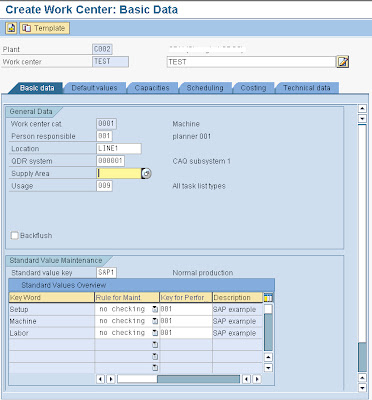
Short Description -
This would be an around 40 character work center description.
Person responsible –
You may configure this field or choose from the standard available from the drop down field, I guess this field has no major implications. To configure the field values you can press F1 and in the pop-up box press the customizing option through which you can enter the configuration area for your project. It is not harmful if you use the pre-existing standard SAP configured values.
Location –
This field also has no major implications, though you may configure this field values as well. To configure the field values you can press F1 and in the pop-up box press the customizing option through which you can enter the configuration area for your project. It is not harmful if you use the pre-existing standard SAP configured values.
QDR System –
The QDR system is an important field when you are integrating the SAP PP/PPPI system with the shop floor legacy systems. This field gives you an option to map SAP with the legacy system, you have to configure this field values and enter the logical addresses of the legacy system for the SAP system to interact. To configure the field values you can press F1 and in the pop-up box press the customizing option through which you can enter the configuration area for your project.
Supply areas –
Again you have to configure the values for this field which helps you in KANBAN or Warehouse Modules. To configure the field values you can press F1 and in the pop-up box press the customizing option through which you can enter the configuration area for your project.
Usage –
Usage Field helps you decide in which task list - recipe, routing, maintenance task list, quality inspection plans etc, the work center or resource can be used.
Here you have to decide where you want to use the work center and thus restrict the use in other areas.
BackFlush -
In SAP PP/PPPI/REM, backflush helps you automatically issue quantities of certain components to the order during the order confirmation process. Normally backflush indicator is included in the material master MRP 2 View which tells the system that whenever the material is used in orders it should be backflushed, but if you are marking a work center as backflush then you are telling the system that when you are confirming the production at this work center for an order, all the components allocated to the work center should be backflushed.
I would recommend backflush indicator to be set at the component level in the MRP View.
Standard Value Key -
You can enter a configured standard value key which is a place holder for maximum of 6 parameters or activities which will help in capacity requirement calculations, scheduling and evaluating the planned costs of the order where the work center is used.
The Standard value keys brings in 6 parameters whose values are entered in the Routing or the Recipe, this standard values entered for a base qty will help in deriving the capacity, schedules, costs of the order.
The standard values can be (only 4 out of 6 are used here):
Machine time
Set-up time
Steam consumption
Electricity consumption
The Machine time and the set up time can be used in capacity, scheduling and costing formulas as parameters and eventually help in deriving the capacity, schedules and costs of the order.
Whereas, the Steam and Electricity parameters can be used in formulas which are designed to derive the steam consumption and electricity consumption costs.
Enter the values in the Default Screen (2nd Tab):
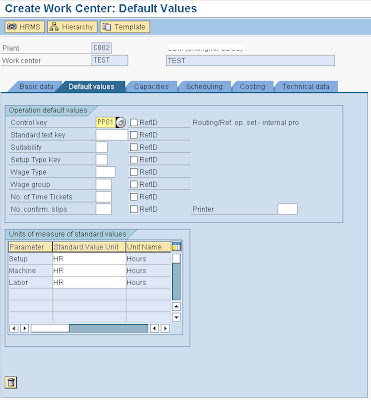
Control Key –
You can default the control keys that would be used in the task lists operations and ultimately in the production orders.
Transaction code OP00 can be used to configure the control keys.
A control key holds controls such as:
§ Whether a work center should be scheduled.
§ Whether a work center should be cost derivations.
§ Whether a work center should derive the capacity requirements.
§ Whether a work center can have auto goods receipts posted from it. Such work centers are the last work centers in a sequence of operations laid in a routing or recipe.
§ Whether a work center can be subjected to quality inspection through the use of quality inspection characteristics assigned in a quality inspection plan.
§ Whether a work center is externally processed and not processed in house; in which case a purchase requisition will be created to send the process out for production, please note that if you are sending the process out for production, the purchase requisition is not created for any material code but it is created for the process description without the material code in the requisition.
§ Whether it should be allowed to carry out confirmations for the work center and if confirmations are allowed whether these confirmations types be operation wise confirmation or milestone confirmations. Milestone confirmation means that if you confirm a certain operation in a task list, it would automatically confirm all the operations above it or in other words it will confirm all the operations from this milestone operation to the earlier milestone operation only.
§ Whether you can print confirmations.
§ Whether you can print this work center when you are printing shop floor papers for the production order.
Standard Text –
Standard text identifies a text that is frequently used to describe certain processes. It is like a description given to the operation that would be carried out at the work center.
Defaulting UOM for the Standard Key assigned in the first basic data tab:
You can default the UOM of these parameters which will be brought in as defaults in the task list and in the order.
Enter the values in the Capacity Screen (2nd Tab):
Capacity has 2 screens appearing one after the other.
a) Capacity Overview screen
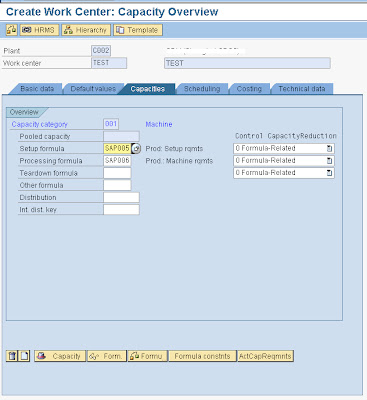
Capacity Category –
Enter a capacity category that was used when creating the work center. Normally this is the way you enter a value for the category, but you can differ here.
Pooled Capacity –
A Capacity created which can be used across many operations, for example a group of people who set up work centers before processing.
Other Formula –
Enter a formula for deriving the capacity requirements. This formula should necessarily use the parameters that you have entered through the standard value key, for example if you have Machine time, Set up time, Steam consumption, electricity consumption parameters, you can only use from this set of parameters.
Also verify whether you work center capacity formula is allowed for Capacity requirement generation; you have to check this indicator on when you are developing the formulas in the configuration and if you are using a predefined SAP formula you can verify this by displaying the formula (in Extras à Formula à Display)
Capacity Formula Example:
The formulas for capacity requirement / Scheduling requirement can be:
Example 1 - For regular qty based work center or resource
= [Setup + {(Production order Qty X Machine Time consumed) / Base Quantity}]
Example 2 - For a work center or resource which processes more than one quantities at one given time schedule (for example a casting machine)
= {Set-up Time + [{Volume of Base Qty / Base Qty X (Production Order qty - 1)} / {Volume of Furnace + 1}] X Furnace Time}.
In this case
Recommendations:
For Regular production in SAP PP or SAP PPPI you can use SAP006 – Machine Requirements
b) Capacity Header Screen
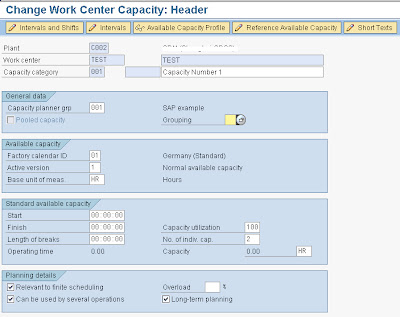
Capacity Planner Group and Grouping –
You can use a standard Capacity planner group provided by SAP or create your own. The Planner group is responsible for handling this capacity. Such fields are useful when drawing reports.
Factory Calendar ID / Active Version –
Using Transaction code SCAL, you can design your factory calendar, which will contain the holidays and validity of calendar.
A factory calendar is very important unit in a work center as it helps in disallowing planning (production, procurement) on holidays.
Keep Active version = 01
Base unit of Measure –
Start time / Finish time / Length of Breaks / Capacity Utilization / Number of individual capacities / Capacities Unit –
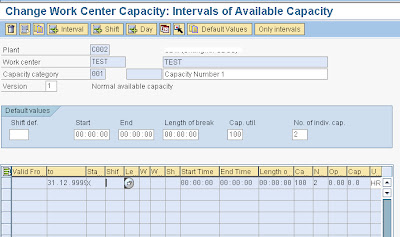
If you are not maintaining the shift schedules and shift sequences, through the use of “intervals of available capacity”, then you have to enter the start time, finish time, break length, capacity utilization percentage and the number of individual capacities in the work center along with the unit of measure for the capacity. Once you enter these details the system calculates the operating time available in a day.
When you enter these values for a work center or resource you are assuming that for each day throughout the life of the plant the work center will work for a particular start time to end time with a given break time for the number of machines or people (individual capacities) and for a capacity utilization.
But if you differ from the above statement and your available time changes with respect to seasons or periods, then you can either define the available capacities through the use of shifts sequences defined in configuration or define the shifts and time manually in the “intervals of available capacity screen”.
If you plan to maintain through the use of Intervals of available capacity, then you can do so by clicking on the Button – “intervals of available capacity” on the capacity header screen. On the “Intervals of available capacity” screen, you can the “+ Intervals” button to enter the configured shift sequence and thus pull in the predefined daily shift schedules or enter the daily schedules and shift details for a period manually.
Capacity relevant to finite scheduling -
If you want the system to take the available capacity and the load of this capacity into account during finite scheduling then you select this indicator. Also when you are interested in carrying out SAP ECC Capacity availability checks you should select this indicator.
Other uses are – Mandatory selection of this indicator, if using finite scheduling based planning methods in APO.
I would always select this indicator for all my work centers or resources no matter what!
Several operations can use capacity -
This indicator if selected allows you to process other orders on the same work center to consume the remaining available capacity. This should always be selected – preferably.
I would always select this indicator for all my work centers or resources unless and untill you dont want other orders to use it.
Long term planning -
Select if you are using this work center for long term planning purpose. The goal of long-term planning is to determine material requirements and capacities for assemblies and raw materials based on a simulated demand program containing independent requirements.
Similarly I would always select this, there is no harm in selecting it.
Enter the values in the Scheduling Screen (3rd Tab):
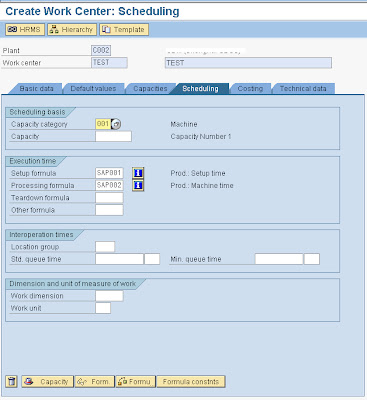
Capacity Category:
Enter a capacity category entered in the capacity overview screen. The capacity category enables you to determine whether it is machine or labor capacity.
Other Formulas:
Enter a formula for deriving the Schedules. This formula should necessarily use the parameters that you have entered through the standard value key, for example if you have Machine time, Set up time, Steam consumption, electricity consumption parameters, you can only use from this set of parameters.
Also verify whether you work center Scheduling formula is allowed for Scheduling requirement generation; you have to check this indicator on when you are developing the formulas in the configuration and if you are using a predefined SAP formula you can verify this by displaying the formula (in Extras à Formula à Display)
Scheduling Formula Examples:
The formulas for Scheduling requirement can be:
Example 1 - For regular qty based work center or resource
= [Setup + {(Production order Qty X Machine Time consumed) / Base Quantity} / Splits]
Example 2 - For a work center or resource which processes more than one quantities at one given time schedule (for example a casting machine)
= {Set-up Time + [{Volume of Base Qty / Base Qty / Splits X (Production Order qty - 1)} / {Volume of Furnace + 1}] X Furnace Time}.
Recommendations:
For Regular production in SAP PP or SAP PPPI you can use SAP002 – Machine Time.
Enter the values in the Costing Screen (4th Tab):
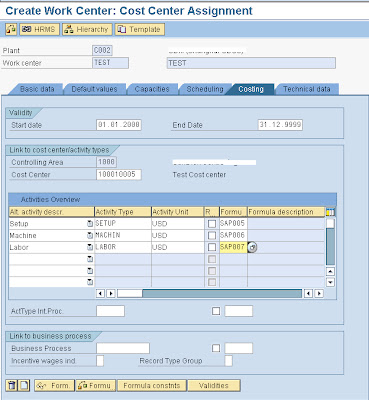
Start date / Finish date of Work Center –
This is the start validity date and the end validity date of the work center.
Normally the work center validity start date, cost center validity start date, the activity validity start date and the Routing Validity start date and the BOM validity start date should be kept as one.
Cost Center –
Defines the cost center where all the activity costs will be collected. Every work center which should collect activity costs should have a cost center. The cost centers are created by the SAP CO consultants.
Activities Assigning –
All the parameters or the activities defined in the Standard Value key should hold a formula next to it to derive the activity costs.
Normally the capacity requirements formulas can be used here for costing purposes unless and until the costing team does not have any other specific formulas for costing purposes.
All the formulas should be allowed for costing, you can check this while configuration or you can check this in the work center itself by using the path Extras à Formula à Display.
For example –
Set-up time = SAP001 – Set up Time
Machine time = SAP006 – Machine Requirements
Steam Consumed = ZSTEAM – Steam Consumed
Electricity Consumed = ZELEC – Electricity Consumed
i.e.,
SAP001 = Set up Time
SAP006 = Machine * Operation quantity / Base quantity
ZSTEAM = Steam Consumed parameter * Operation quantity / Base quantity
ZELEC = Electricity Consumed parameter * Operation quantity / Base quantity


